Best Software for Editing Twitch VODs (2026)
If you edit Twitch VODs — whether you are the streamer, a hired clip editor, or a one-person channel trying to push to YouTube and TikTok — the “best” software depends entirely on what you ship. This guide compares the ten tools that actually matter in 2026: traditional NLEs, AI clippers, and the new browser-based chat editors. Picks by use case first, then short reviews of each tool, then a decision shortcut.
The honest disclosure
This guide is published by the team behind vod.ing. We rank our own tool below where it earns it — specifically for chat-driven highlight discovery and transparent chat overlays. For long-form YouTube edits, vertical TikTok clipping at volume, or talking-head repurposing, other tools win and we say so. If you came here expecting an advertorial, this is not one.
How we sorted them
Twitch editing software splits into three real categories in 2026, and the category matters more than the brand. Traditional NLEs (Premiere, DaVinci, CapCut, Filmora) give you a timeline and total control — you cut what you want, frame by frame, but you also do all the work. AI clippers (Eklipse, StreamLadder, OpusClip, Vizard) ingest a VOD and spit out a stack of pre-cut vertical clips with captions and reframing — fast, but the output looks templated and the highlight detection makes mistakes you have to catch. Browser-based editors (vod.ing) sit between the two: chat-aware tools that combine highlight detection with manual editing, designed specifically for the Twitch source format with chat as a first-class input rather than an afterthought. Picking across the wrong bucket is how editors waste money — buying Premiere when you needed an AI clipper, or paying for an AI clipper when your client wants frame-perfect long-form cuts.
The picks by use case
| Use case | Winner | Runner-up |
|---|---|---|
| YouTube long-form edits | DaVinci Resolve (free) | Adobe Premiere Pro |
| Vertical clips at volume | Eklipse | StreamLadder |
| AI-ranked clip discovery | OpusClip | Vizard |
| Chat-driven highlights + chat overlays | vod.ing | (no real competitor) |
| Fully free / open source | DaVinci Resolve + TwitchDownloader | CapCut (free tier) |
| Mobile-first quick edits | CapCut | CapCut (still) |
Best for YouTube long-form edits → DaVinci Resolve or Adobe Premiere Pro. A 30-minute YouTube cut from a 6-hour stream is a real edit — multicam, color, audio cleanup, motion graphics. AI clippers cannot do this. DaVinci’s free tier handles everything most editors will ever need; Premiere wins if you are working with clients who send you .prproj files.
Best for vertical clips at volume → Eklipse or StreamLadder. If your job is “30 TikToks per week from this streamer’s VOD,” these two are built for that. Eklipse’s free tier is more generous (15 highlights per stream); StreamLadder’s templates look better. See our Eklipse vs StreamLadder comparison for the head-to-head. For the why-and-how of vertical reformatting, see editing Twitch VODs for TikTok & Shorts.
Best for AI-ranked clip discovery → OpusClip. OpusClip’s “ClipAnything” scoring ranks moments by a virality heuristic — it tries to predict which 30-second window will perform best on TikTok or Shorts. It is genuinely good at this for talking-head content where the audio drives the moment: podcasts, IRL streams, Just Chatting. For gameplay, where the visual signal (a clutch, a wipe, a movement tech execution) is what makes the moment, OpusClip’s audio-weighted scoring underperforms and you will be re-ranking the suggestions yourself.
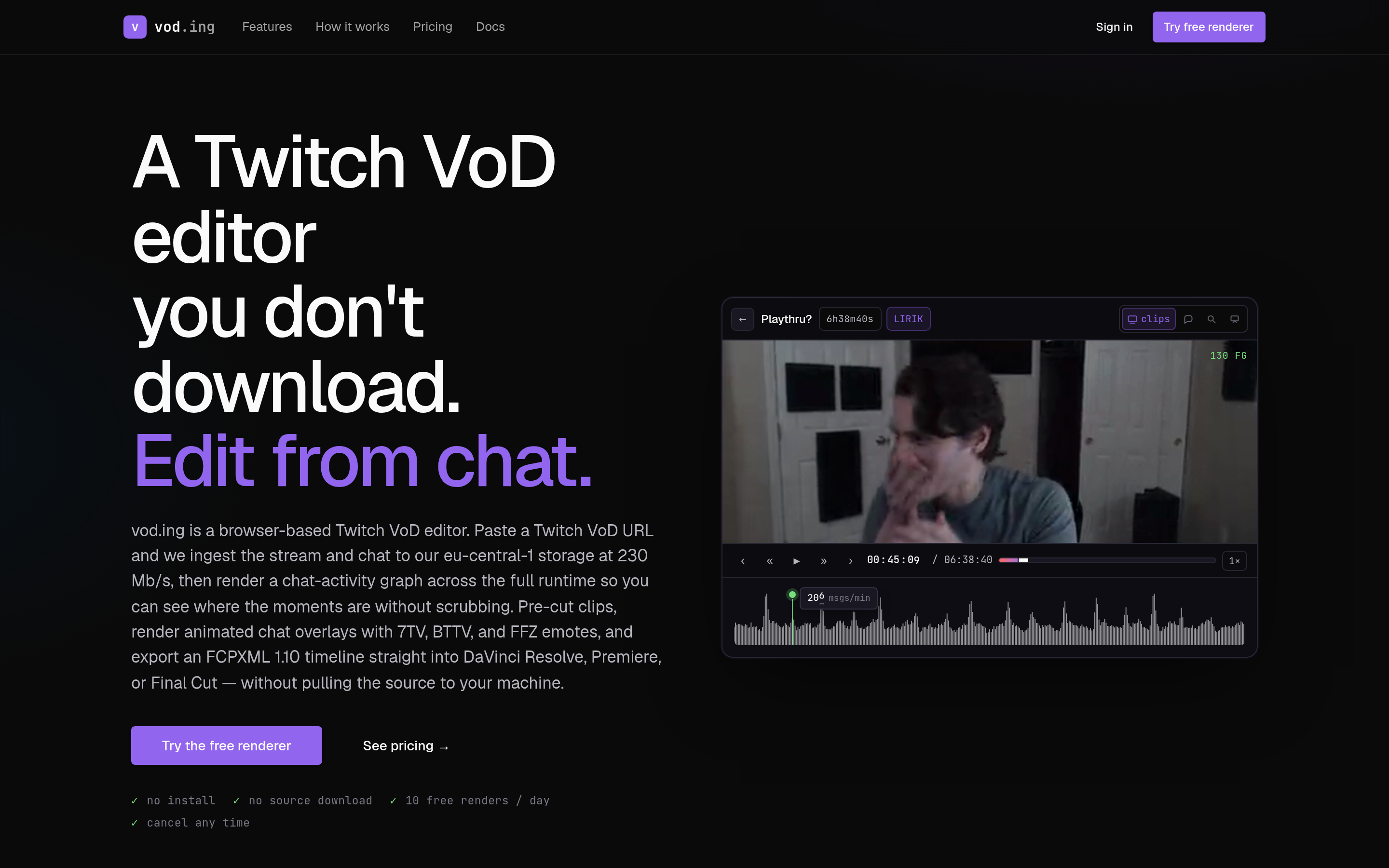
Best for chat-driven highlight workflows + chat overlays → vod.ing. Chat is the Twitch-specific signal that no general video tool understands. If your editing process is “find the moments where chat went insane, then build clips around those,” you want a chat activity graph plus a way to render the chat itself onto the clip — see the transparent .mov chat overlay tutorial. vod.ing does both natively.
Best for fully free / open source → DaVinci Resolve + TwitchDownloader. TwitchDownloader pulls VODs, clips, and chat as JSON; DaVinci edits them. No subscription, no watermark, no export limit. The only thing you pay is your time learning Resolve’s quirks.
Best for mobile-first quick edits → CapCut. Pull a clip on your phone, caption it, post it in 10 minutes. CapCut killed the “is mobile editing real” question two years ago.
Tool-by-tool short reviews
Adobe Premiere Pro
The industry-standard NLE and the format clients expect. Pricing in 2026 is around $22.99/month for the single-app plan or $59.99/month for all of Creative Cloud. Best at: collaboration, plugin ecosystem, working with editors who already use it, and the dynamic link with After Effects when you need motion graphics. Weakness: the subscription is non-negotiable, you do not own the software, and Premiere has been less stable than DaVinci on long Twitch VODs for several releases now — multi-hour timelines benefit from proxy workflows. Ideal user: the freelance clip editor with paying clients on Adobe, or anyone who already lives inside Creative Cloud for Photoshop and After Effects.
DaVinci Resolve
Blackmagic’s free professional NLE. The free tier is genuinely free — no watermark, no time limit, no nag screens, no export resolution cap below 4K. Studio license is $295 one-time (not subscription) and adds neural-engine features, noise reduction, advanced HDR, and higher-than-4K export. Best at: color grading (the Color page is the industry standard for grading), audio post (Fairlight is built in), and being free. Weakness: the learning curve is steeper than Premiere, the page-based UI confuses Premiere refugees, and very long Twitch VODs benefit from proxy workflows that take a few minutes to set up. Ideal user: anyone who does not already pay Adobe.
CapCut
ByteDance’s free editor for desktop and mobile. The free tier covers most short-form editing; CapCut Pro adds advanced effects and stock assets. Best at: speed, auto-captions, vertical templates, mobile-first workflows. Weakness: the AI features push you toward a recognizable “CapCut look,” and TOS questions around commercial use have come and gone. Ideal user: streamers editing their own clips between streams, beginners, mobile-only editors.
Filmora
Wondershare Filmora is around $49.99/year. It is fine. The interface is friendly and the asset library is big. The honest take: at every price point there is a better option — DaVinci is free, CapCut is faster, Premiere is more powerful. Filmora survives because it is heavily marketed, not because it wins comparisons. Ideal user: someone who specifically prefers Filmora’s UI and has tried the alternatives.
Eklipse
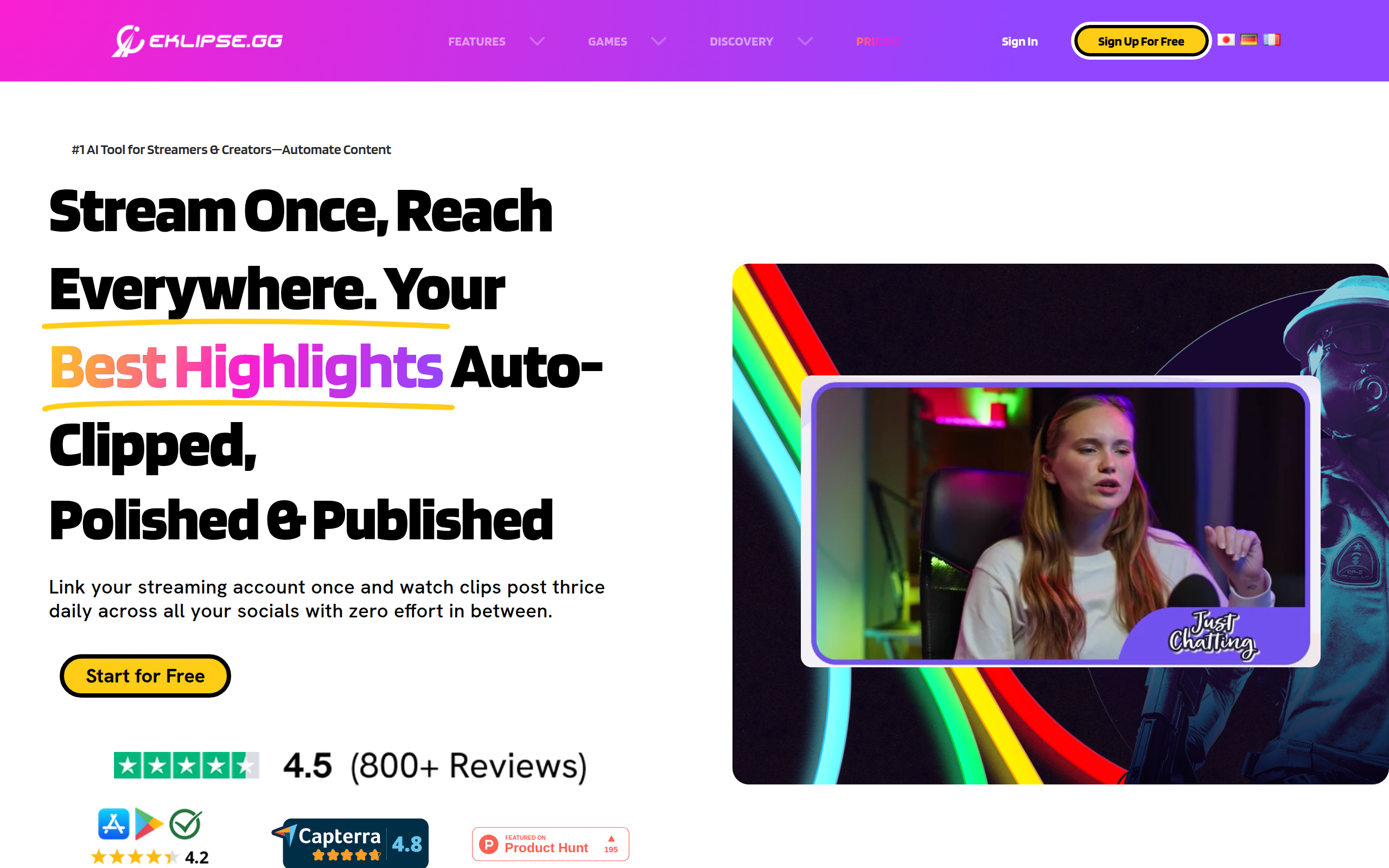
Eklipse auto-detects highlights from Twitch VODs using audio peaks, kill detection for supported games, and chat velocity, then exports vertical clips with captions. Free tier caps at 720p and 15 highlights per stream; paid plans start around $7.50/month for 1080p and more output. Best at: high-volume gameplay clipping, especially for FPS and MOBA where Eklipse’s game-specific detection actually understands what a kill or objective looks like. Weakness: the free-tier resolution is too low for most platforms in 2026, the templates are recognizable across channels, and the highlight detector still produces false positives that you have to filter manually. Ideal user: editors managing multiple streamers, willing to pay for the tier that exports at 1080p.
StreamLadder
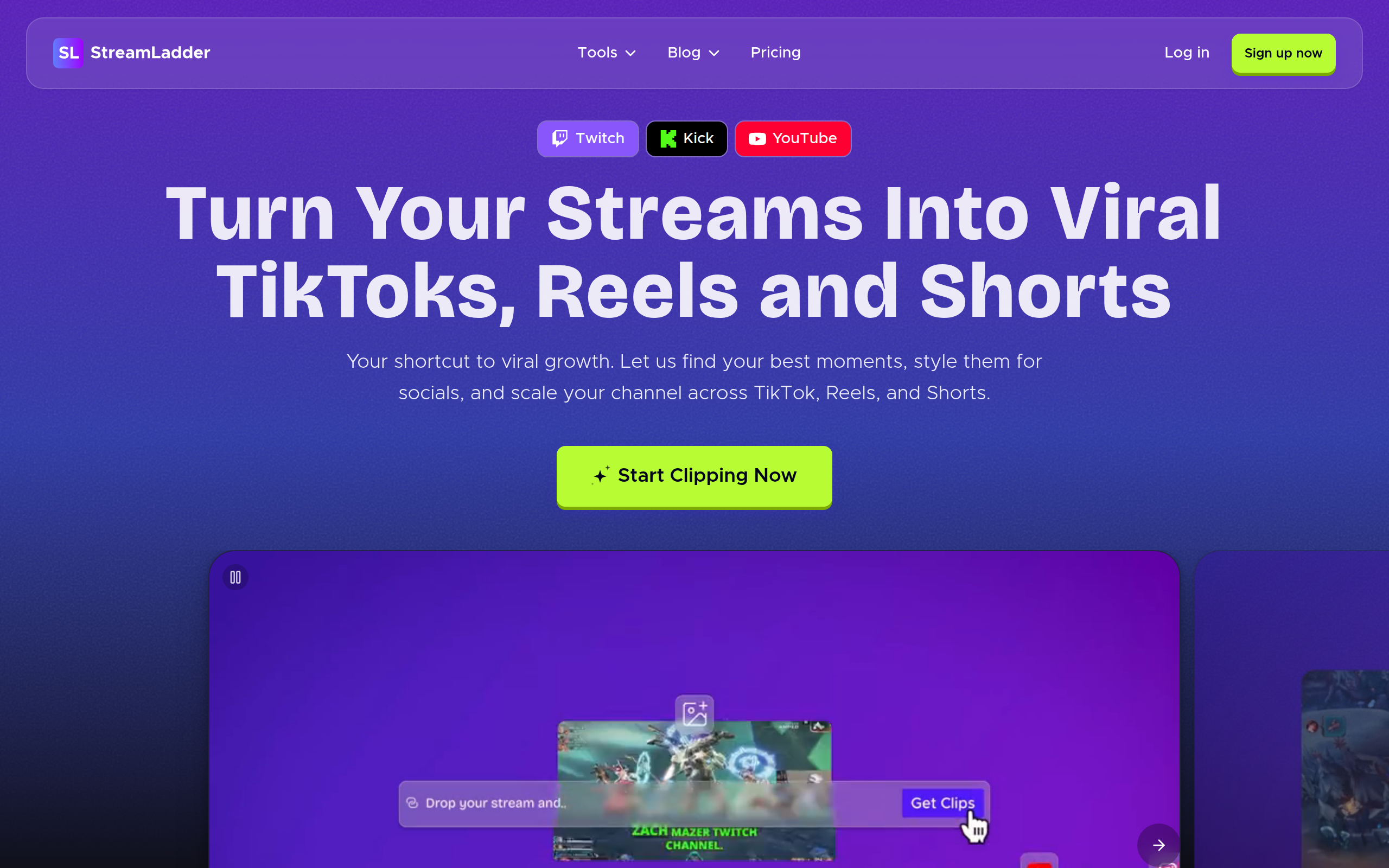
StreamLadder is a browser-based vertical clip editor with template-driven layouts. Free tier exports with a watermark; paid starts around $9/month. Best at: clean templates, fast 9:16 conversion with face-cam tracking, and captions that look intentional rather than dumped on top of the frame. Weakness: the watermark on the free tier is aggressive (corner placement, large), and heavy template use across a creator’s catalog makes every channel start to look identical — viewers can clock a “StreamLadder clip” at a glance. Ideal user: streamers and small editors who want their clips to look polished without learning an NLE, and who are okay paying to remove the watermark.
OpusClip
OpusClip ranks moments by a virality score and exports captioned vertical clips. Free tier exists; paid starts around $15/month. Best at: talking-head content — Just Chatting, podcasts, IRL streams. Weakness: weaker on gameplay, where the visual context is the joke and OpusClip’s audio-driven scoring misses it. Ideal user: streamers whose content is mostly them talking on camera.
Vizard
Vizard is OpusClip’s closest competitor — AI clipping, captions, vertical reframe. Pricing is comparable. It is genuinely solid; the differentiator is mostly preference. If OpusClip’s clip suggestions feel off to you, try Vizard. Best at: long-form interview and podcast repurposing. Weakness: same gameplay limitations as OpusClip. Ideal user: try both free tiers and pick the one whose ranking matches your taste.
vod.ing
Browser-based editor built specifically for Twitch VODs, with chat as a first-class input. Renders transparent .mov chat overlays and provides chat activity graphs for highlight discovery. Free tier renders chat overlays (10/day, 3-minute cap); paid unlocks full editing. Best at: chat-driven workflows, anything where the chat reaction is the highlight. Weakness: browser-only, no offline mode, subscription for the full editor. Ideal user: editors who treat chat as the signal, not the decoration.
TwitchDownloader
TwitchDownloader is an open-source utility (lay295 on GitHub) that downloads VODs, clips, and chat JSON. Free, no account. Best at: getting the source files into whatever editor you actually use. Weakness: it is a downloader, not an editor — pair it with DaVinci or Premiere. Ideal user: anyone editing Twitch content. Genuinely should be in every editor’s toolkit.
Decision shortcut
Stop overthinking it:
- Streamer editing your own VODs → DaVinci Resolve (free) or CapCut for mobile.
- Clip editor with 5–20 streamer clients → Premiere Pro + Eklipse for the volume runs.
- Chat is your highlight signal → vod.ing for discovery and overlays, then Premiere or DaVinci for the cut.
- Free-tier-only, no subscriptions → DaVinci Resolve + TwitchDownloader.
- Just Chatting / podcast streamer → OpusClip or Vizard for the talking-head clips.
- Mostly mobile → CapCut. There is no second answer.
What’s changed in 2026
Four shifts since 2024 actually matter. The AI clipper category exploded — Eklipse, StreamLadder, OpusClip, Vizard, and a dozen smaller competitors have collapsed margins and pushed everyone toward better free tiers and lower paid pricing. Per Speechify’s editor-rate survey, per-clip rates for vertical Twitch content have dropped roughly 30% as a result, while expected volume per editor has roughly doubled — the editors still earning are the ones who layer AI clippers on top of an NLE rather than treating either as the whole job. Chat-driven editing emerged as a third bucket — Twitch chat is now treated as a primary editing input rather than a decorative overlay, which is what created the space for tools like vod.ing and what made the chat activity graph a standard discovery surface. CapCut killed the “is mobile editing real” debate — top-100 Twitch clips channels now routinely ship mobile-edited shorts, and the “shot on phone” stigma is gone. DaVinci Resolve’s free tier remains the best deal in software — Blackmagic shows no sign of nerfing it, the 2025 update added genuinely useful AI features to the free tier rather than gating them behind Studio, which means there is no longer a real “I cannot afford an editor” excuse.